Availability Filter Block
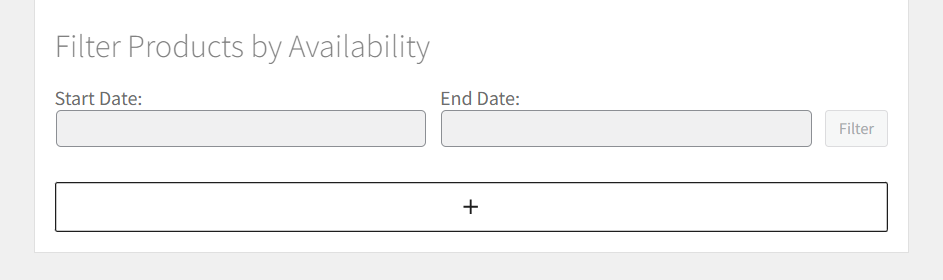
The Availability Filter block (also labeled Filter Products by Availability) lets customers pick a date range and reload the product list to show only appointable products with open slots in that window.
Before you begin
How it works
Customer picks Start Date (and optional End Date), clicks Filter, and the product loop refreshes. The plugin checks global, product, and staff availability plus existing bookings.
Best placement
Shop page, category archives, or landing pages with a product grid - above the product list.
You are ready when
- ✅ Block appears on a page with appointable products in the loop
- ✅ Filtering returns expected products for a known open date
Add the block
- Open the page in the block editor
- Click + → search Filter Products by Availability or Availability Filter
- Insert above or beside the product grid
Configure the block
| Setting | Purpose |
|---|---|
| Title | Inline heading (default: "Filter Products by Availability") |
| Show end date | Enable or hide end date field |
| Date limits | Min/max selectable dates |
| Button text | Label on the filter button |
Date format follows WordPress → Settings → General.
How filtering works
- Customer selects dates and clicks Filter
- Product query reloads with availability constraints
- Each product is checked against:
- Global and product availability rules
- Staff availability (when staff-assigned)
- Existing appointments and capacity
tip
Pair with WooCommerce sorting on shop pages for easier discovery. On classic themes, use the Availability Filter widget instead.
Troubleshooting
| Issue | Check |
|---|---|
| No products found | Availability rules for the date range; products actually bookable on those days |
| Slow results | Indexing on large catalogs |
| Date picker broken | JavaScript conflicts |
Related
- Widgets - classic theme equivalent
- Blocks overview
- Availability rules