Managing Appointments
How it works
Appointments (list) for search and bulk actions · Appointments → Calendar for visual scheduling. Both open the same admin appointment panel.
Typical tasks
- Confirm or cancel from the list
- Reschedule on the calendar (drag when allowed)
- Filter by staff, product, or series (5.4+)
- Optional Location and Resources columns via Screen Options (5.5+, hidden by default)
Appointments list
Appointments in admin - filters, search, and bulk actions at the top.
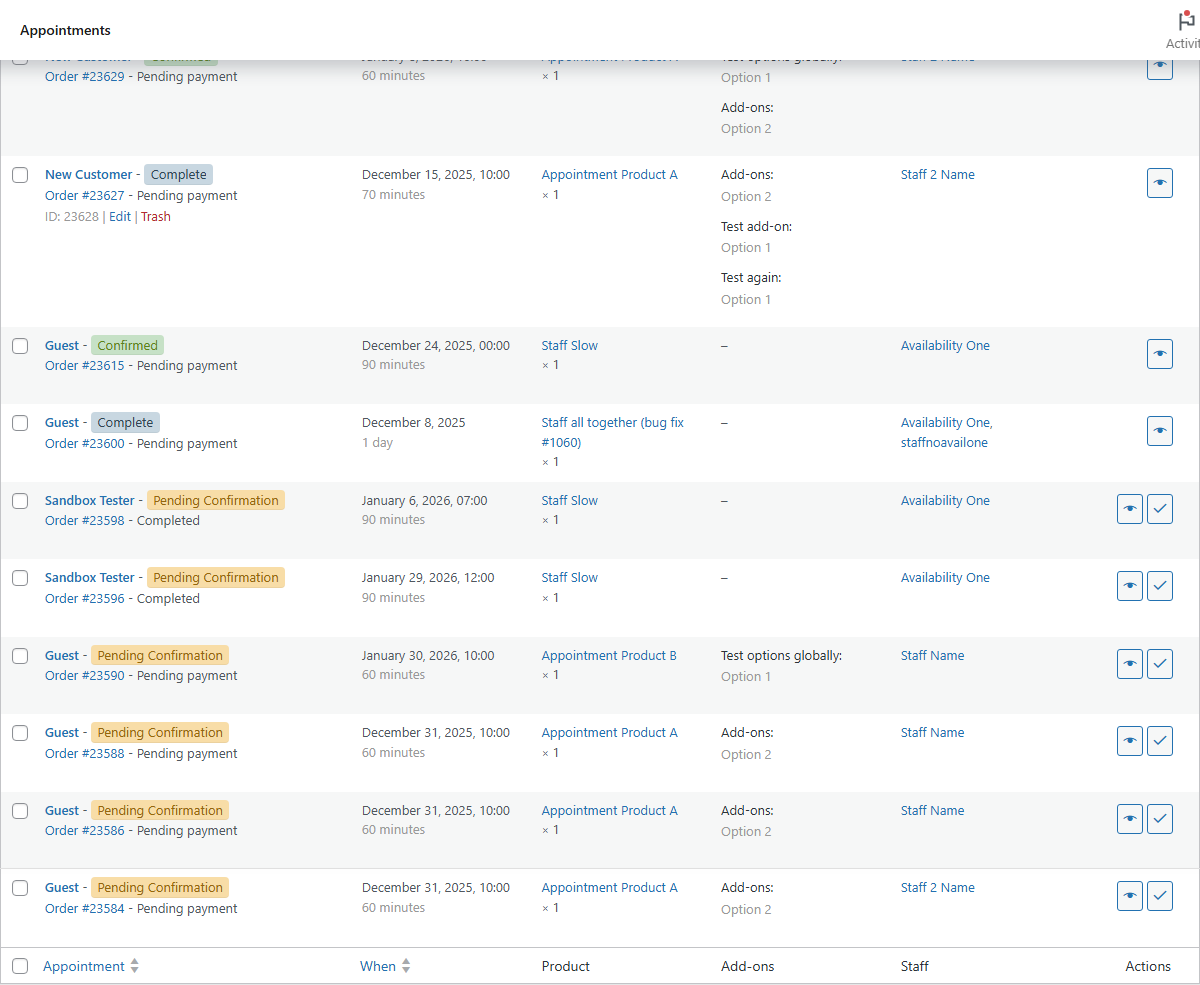
- Filter by status (links above the table)
- Bulk: trash, confirm, unconfirm, cancel, mark paid/unpaid
- Filter by date, product, staff, or series
- Search by customer, ID, product, etc.
- Screen Options: optional Location (snapshot title) and Resources columns when Experimental features are in use - hidden by default like Add-ons
Row actions:

- View - panel (default) or classic edit screen
- Confirm - pending-approval bookings
Create appointments
Since 5.3, use the admin appointment panel:
| Entry point | Result |
|---|---|
| Add New (list or calendar) | Create mode |
| Empty calendar slot | Create with prefilled time |
| Staff portal | Same panel when permitted |
Legacy Appointments → Add Appointment and the old modal remain only when the panel is disabled (wc_appointments_admin_panel_enabled).
View and edit
Panel - View (summary) · Edit (with availability checks on schedule changes) · Edit in WordPress (classic screen, new tab).
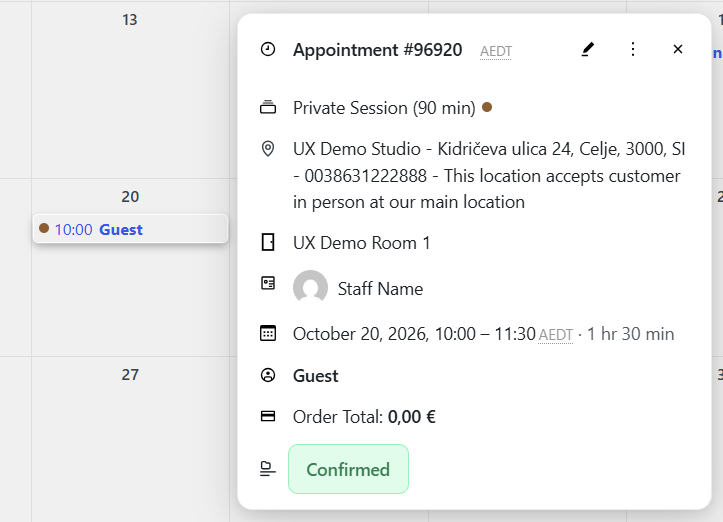
When editing, the appointment’s current slot stays selectable in browse.
Classic edit screen - all meta on one page; availability is not validated on manual date/qty changes.
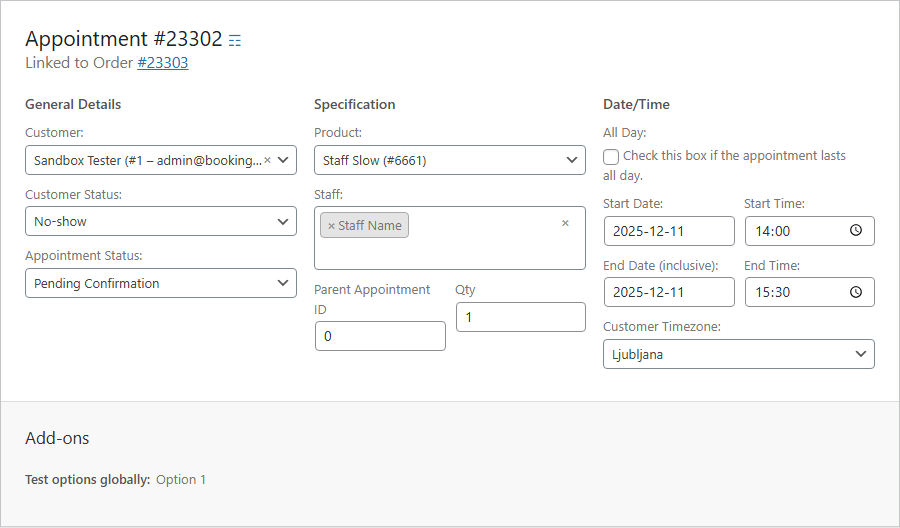
Classic edit and calendar drag-and-drop do not block double-booking. Storefront booking and customer reschedule paths do enforce availability.
Statuses
| Status | Meaning |
|---|---|
| Unpaid | Created, payment pending |
| Pending confirmation | Awaiting your approval |
| Confirmed | Approved and scheduled |
| Paid | Payment received |
| Completed | Appointment finished |
| Cancelled | Cancelled |
Reschedule, confirm, cancel
- Reschedule: calendar drag/resize · panel Edit · classic Start/End fields
- Confirm: list action or bulk → customer gets payment instructions when applicable

- Cancel: frees slots; emails per Notifications
Recurring series (5.4+)
Series rows link to package records. Use scoped actions in the panel (this / following / all) for cancel, skip, and reschedule.
List Cancel affects one appointment. For packages, use scoped panel actions.
Customers: My Account → View series - Recurring packages.