Calendar View
How it works
Appointments → Calendar is your day-to-day schedule. Click a slot or appointment to open the admin appointment panel for create, view, or edit.
What you need
- At least one appointment on the calendar (test booking or admin create)
- Shop manager or administrator role
Month, week, day, and list layouts · sticky toolbar · filters · unavailable overlays · live sync across open tabs.
Live updates
Open calendar tabs stay in sync via Server-Sent Events (/wp-json/wc-appointments/v2/sse) - new bookings and edits appear without refresh.
Drag-and-drop on the calendar does not re-validate availability (same as before). Storefront booking still validates slots.
Views
| View | Best for |
|---|---|
| Month | Long-range planning and density |
| Week | Daily operations and staff columns |
| Day | Hour-by-hour detail |
| List | Sortable table with filters |
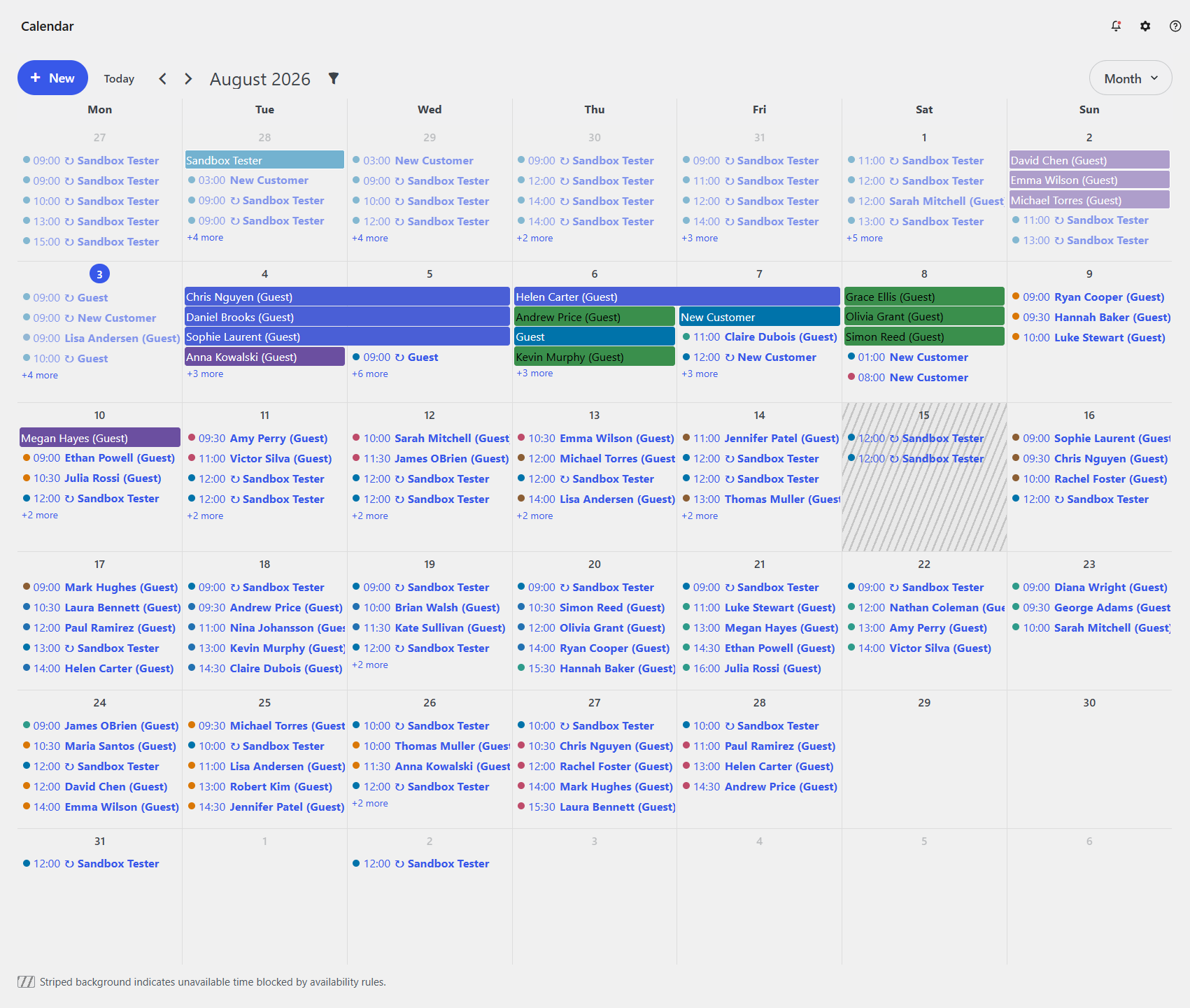
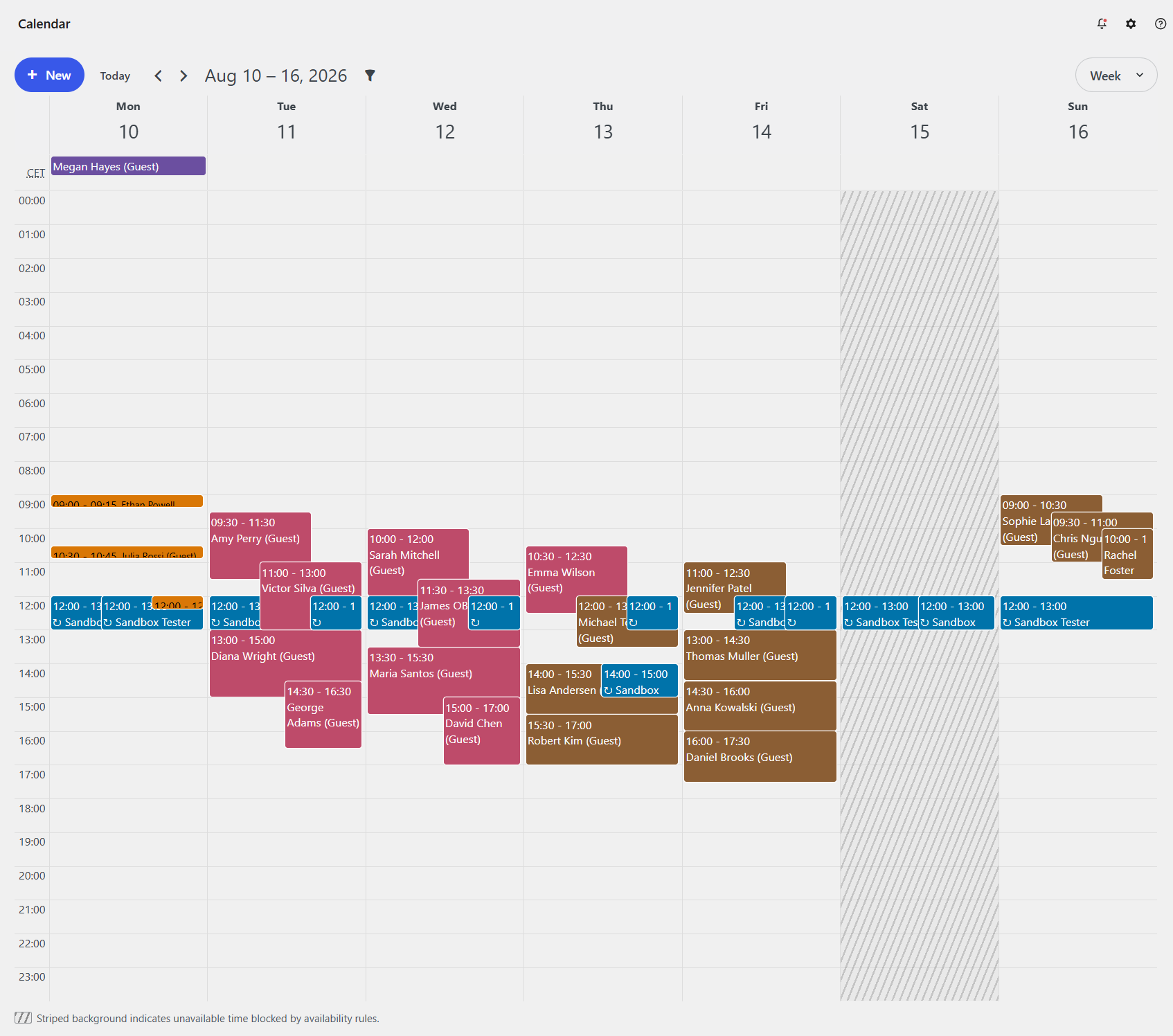
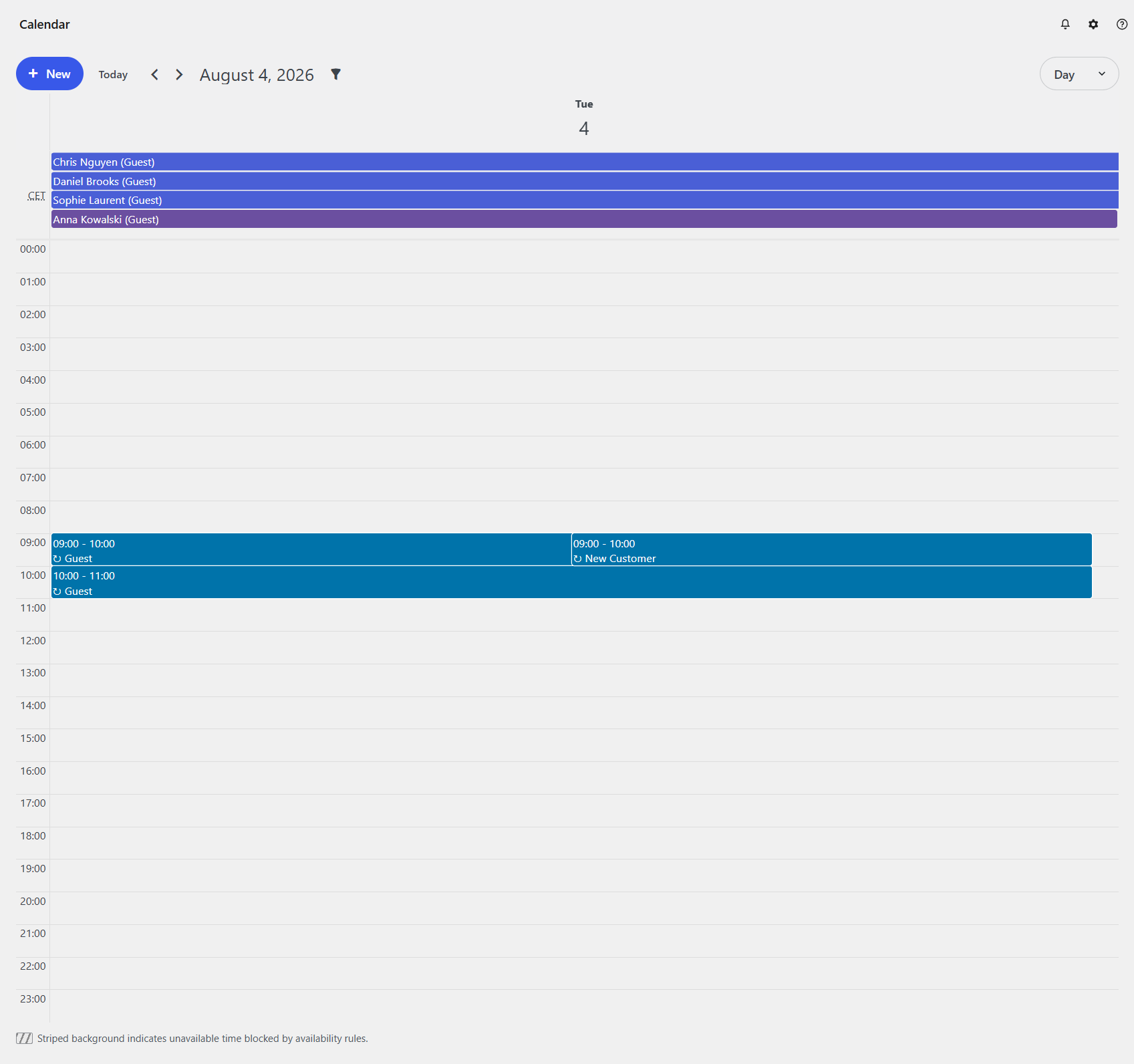
Toolbar
The calendar toolbar stays sticky under the WordPress admin bar (and WooCommerce / staff chrome) so one page scrollbar moves the grid. Day headers dock under the toolbar while you scroll.
- Add New - leading filled button (primary + “New” on wide screens; icon-only under 782px)
- Today - text button, or a home icon under 600px
- View - outlined pill select (month / week / day / list)
- Truncated date range shows the full text on hover (desktop) or tap (mobile)
Filters
Toolbar Filter → multi-select product, staff, locations, and status in the collapsible panel. Status sits above the columns; Locations hides when unused and includes No location.
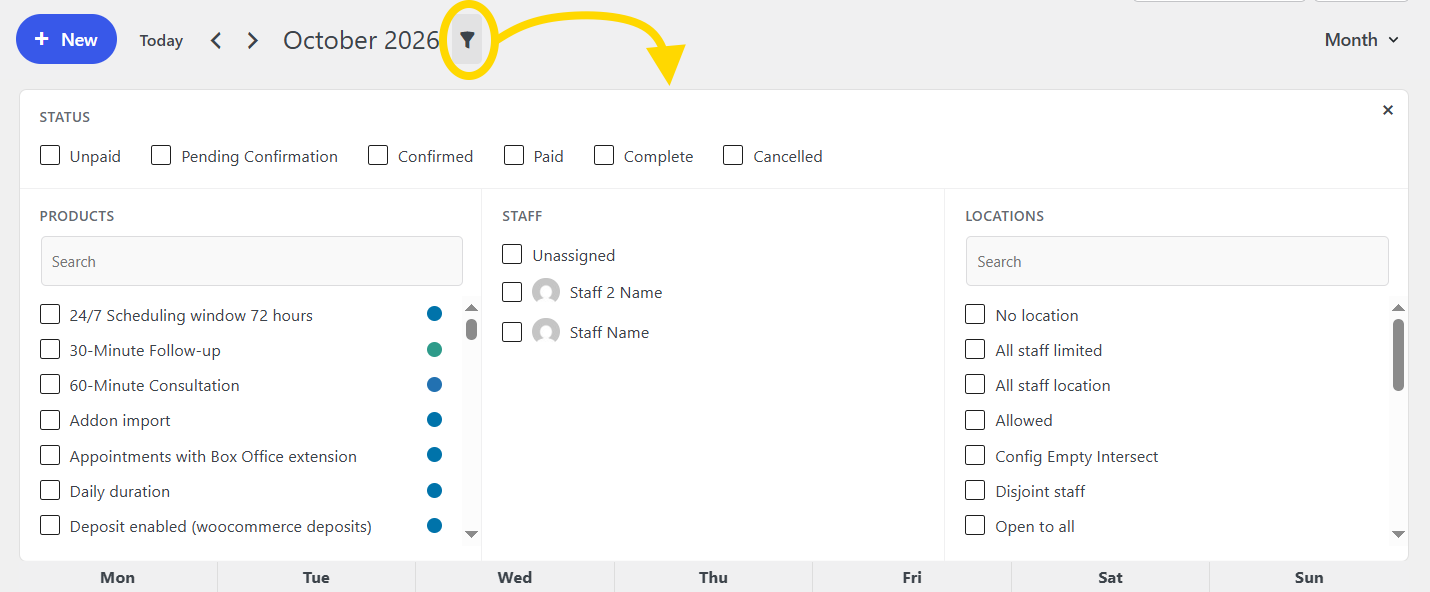
| Filter | Notes |
|---|---|
| Product | Color dot per product |
| Staff | Multi-select; staff users locked to self |
| Locations | When Locations exist; lists published venues |
| Status | Unpaid, pending, confirmed, paid, complete, cancelled |
The filter button shows an active-count badge only; selections stay in the panel (no inline toolbar chips). Clear all resets. Use previous/next, Today, and the title for navigation.
Drag and resize
Move - drag to new time, day, or staff column.
Resize - drag bottom edge; snaps to product interval.
Reschedules add order notes when an order is linked.
Create and open appointments
| Gesture | Panel mode |
|---|---|
| Empty slot / empty cell click | Create (prefilled time when a slot is hit) |
| Drag across empty cells (week/day) | Create (range) |
| Appointment click | View → Edit |
| Toolbar Add New | Create (no date/time prefill) |
| Tap / click an unavailable stripe | Tip only (does not open create) |
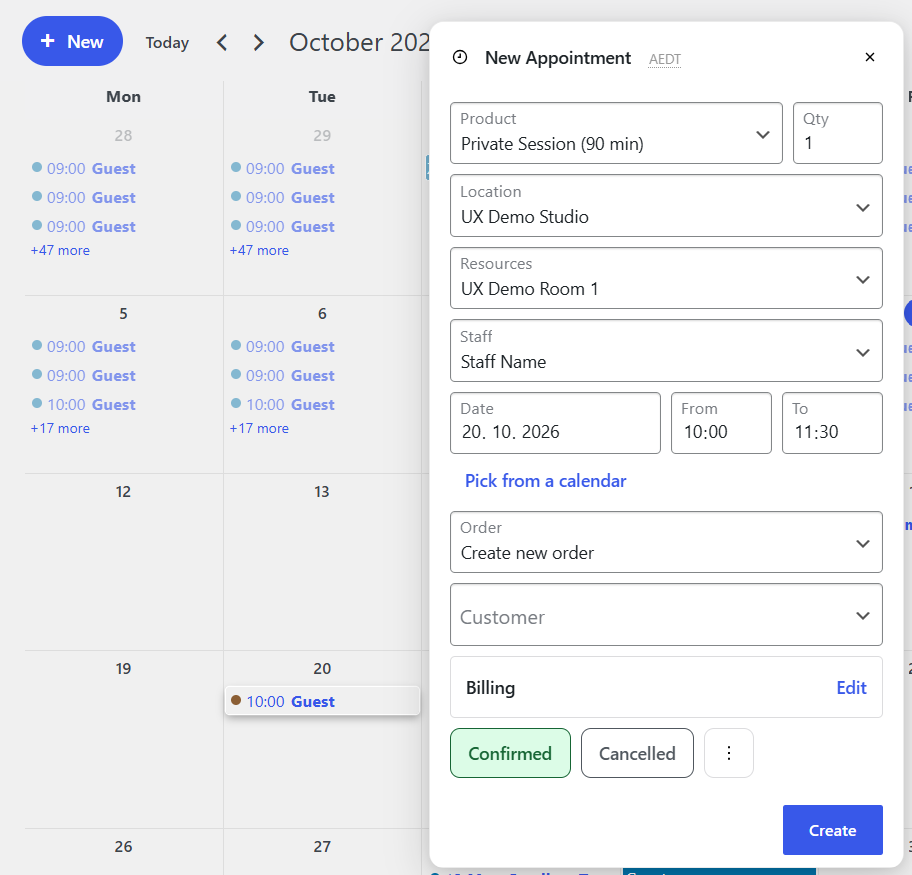
Pick from a calendar inside the panel browses slots - Admin appointment panel.
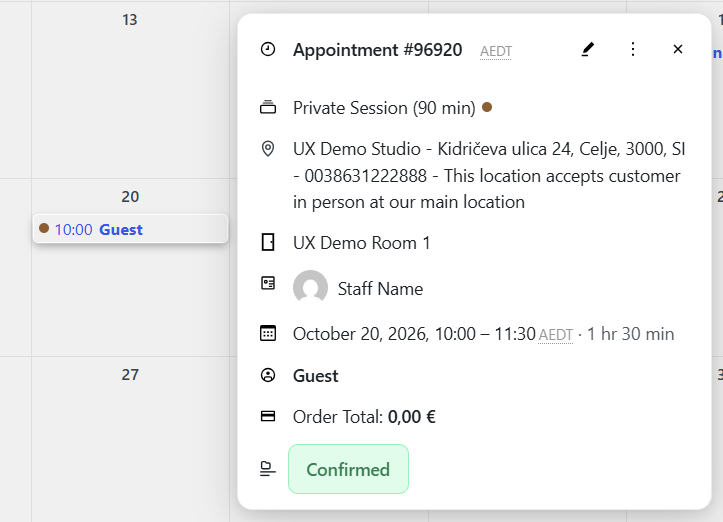
Timezone labels: when the customer zone differs from yours, hover the label for their local time - Timezones.
Unavailable overlay
Striped blocks from availability rules (General always; product / staff / location / room when those layers apply). Events and hover tooltips can include location and resource titles. Rules merge by priority and layer - see Availability. Live SSE updates include location.
- Month: full-day blocks only
- Week/day: time-level blocks; date-only / full-day stripes follow the same civil-day rule as all-day appointments (not shifted by admin timezone)
- Hover (desktop) or tap (mobile) shows a tip with rule title and scope (no full modal)
- Overlapping rules share one tip; empty cells still open create
Tapping a stripe does not open the create panel.
Visual cues
- Product calendar colors on events
- Past and cancelled appointments use muted styling
- Skeleton loading while events fetch
- Status details in the panel, not on every calendar card
Screen options
| Setting | Effect |
|---|---|
| Allow booking unavailable times | Create/edit may proceed outside open hours after confirm (off by default) |
| Use legacy calendar temporarily | Pre-5.1 calendar |
| Use legacy Create as a customer temporarily | Older panel header |
By default, create and edit refuse unavailable times. Details: Admin appointment panel.
Troubleshooting
| Issue | Check |
|---|---|
| Blank calendar | Browser console; conflicting plugins |
| No live updates | SSE blocked by firewall/proxy |
| Drag fails | edit_appointments capability; try another browser |
| Wrong times | Site timezone and staff profile |