Staff Management
Staff are WordPress users assigned to appointable products. Each can have their own hours, timezone, pricing, and Google Calendar.
What you need
- An appointable product (assign staff on the product Staff tab)
- Shop staff role for team members who should only see their own schedule
Create staff
Users → Add New - set role to Shop staff (or manager/admin).
Or Appointments → Staff → Add Staff to pick or create a user.
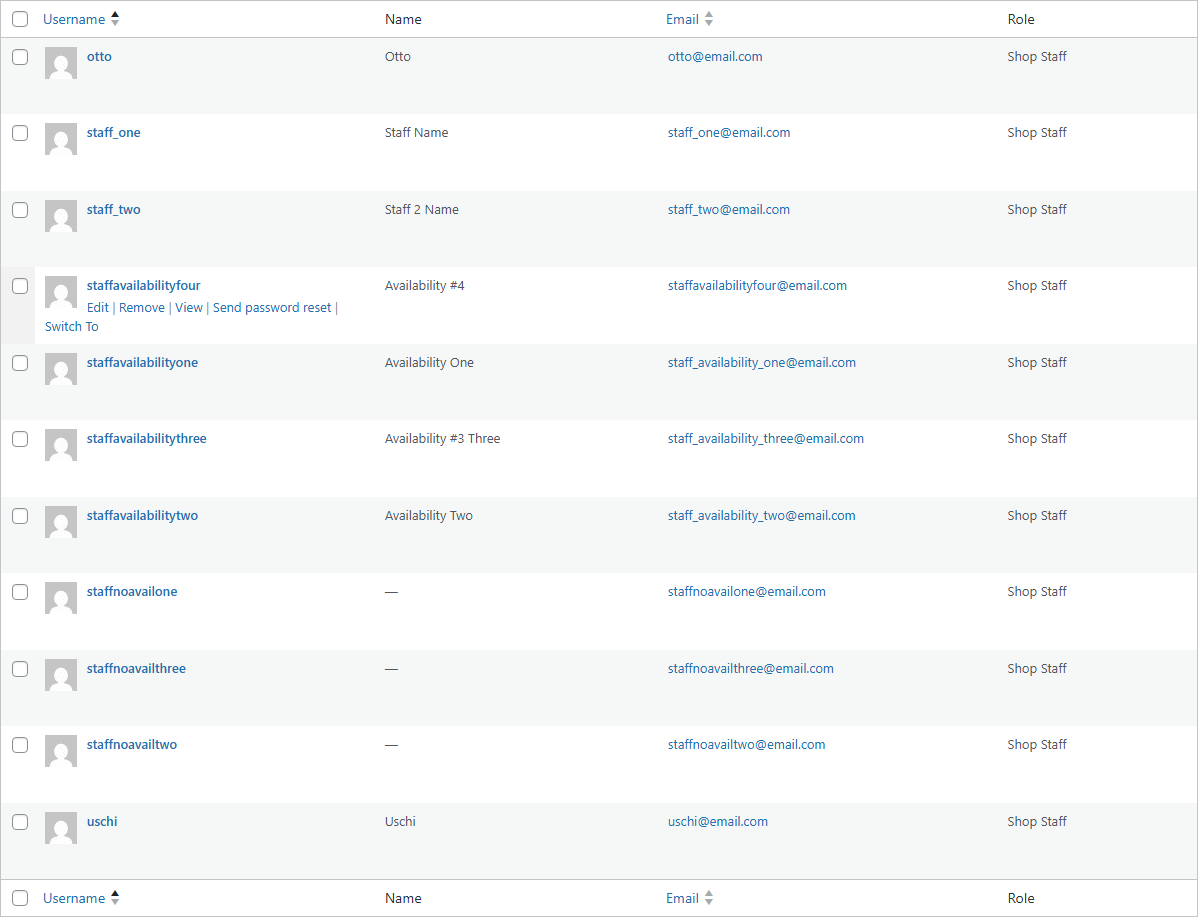
Shop staff, Shop manager, and Administrator can be assigned on products. Shop staff is scoped to own appointments by default.
Staff profile
Edit under Users → Edit user (or the staff member's Profile).
Timezone
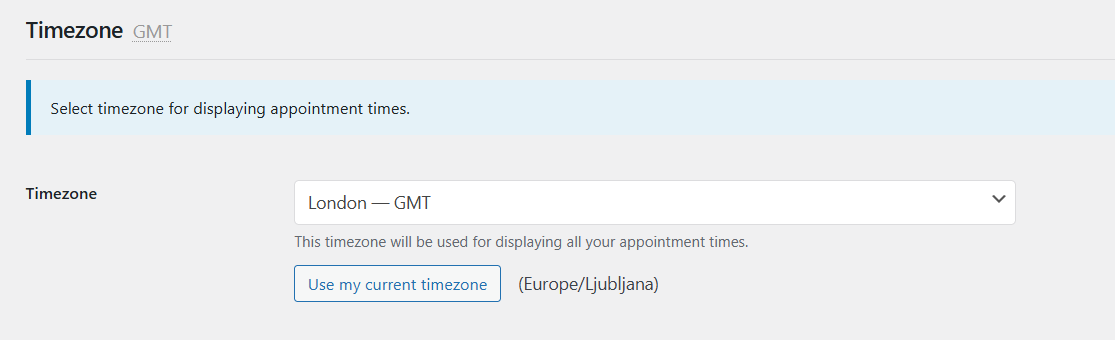
- Default - follows site timezone
- Specific timezone - for remote staff
- Use my current timezone - when browser differs
See Timezones.
Availability
Hours are edited in Appointments → Availability (pick the staff member in the left rail). The profile links into that screen. Google Busy blocks appear under Unavailable when two-way sync is on.
Rules display in the staff member's timezone when it differs from the site. Guide: Availability.
Google Calendar
Requires store OAuth first - Google Calendar - staff calendars.
- Continue with Google - personal token (separate from store)
- Sync mode - one-way or two-way
Assign to products
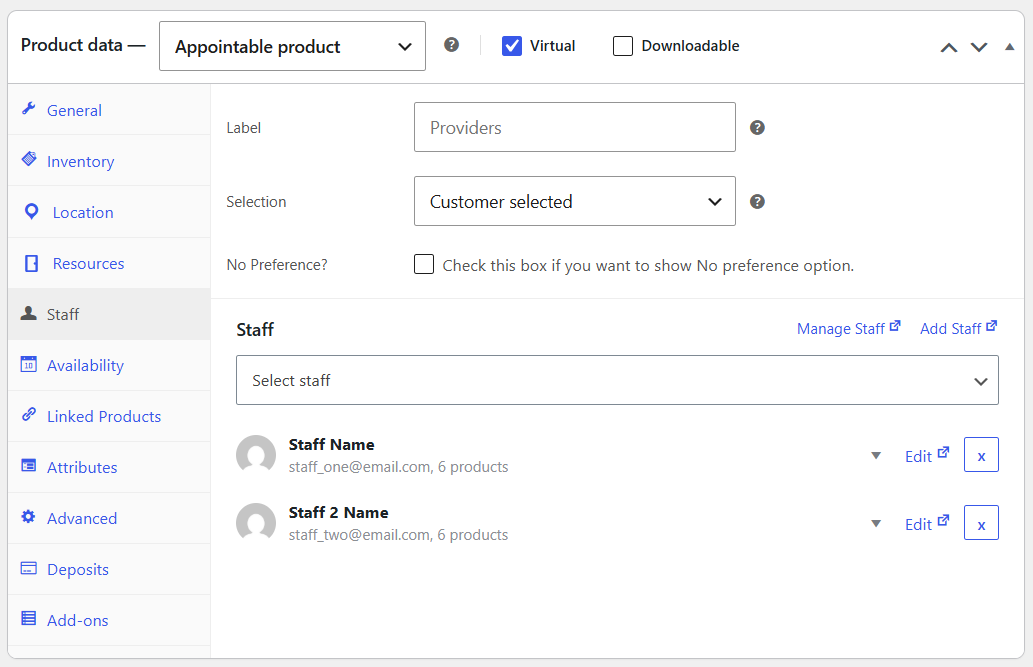
- Edit appointable product → Staff tab
- Add staff from the picker; optional Additional Cost and Quantity per person
- Set Selection: Customer selected, Automatically assigned, or Automatically assigned (all staff together)
Staff hours are global - booking one staff member blocks that person across all appointable products for that slot.
Quantity on the staff row replaces product Capacity for that person. It does not override room Max at once - Inventory & capacity.
Permissions and portal
- Roles & capabilities - what staff see in admin
- Staff portal - streamlined dashboard for Shop staff
Related
- Availability
- Calendar
- Pricing rules - per-staff costs