Exporting & Importing
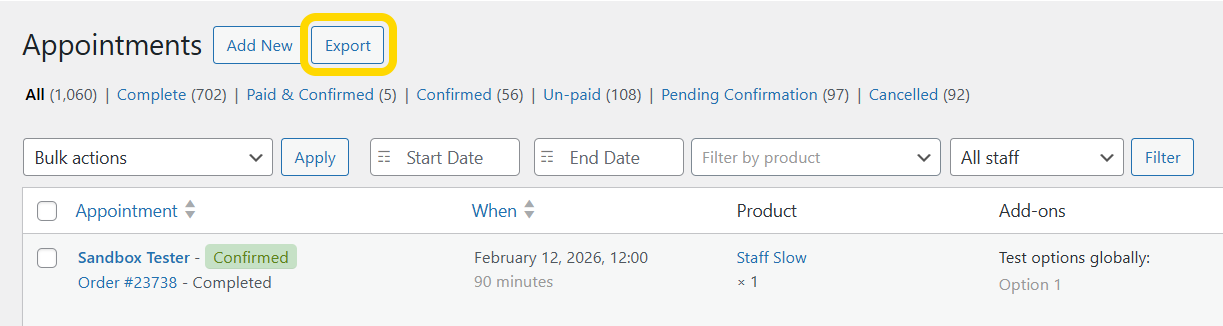
Export appointments from Appointments → All Appointments → Export in CSV or ICS format, with date, product, and staff filters.
Before you begin
How it works
One export screen handles both formats. Choose columns (CSV) or calendar events (ICS), apply filters, then download. ICS files are also attached to many email notifications.
What you need
- Permission to view appointments in admin
- For large exports, allow enough PHP time/memory on the server
You are ready when
- ✅ Export opens from Appointments → All Appointments
- ✅ A test CSV or ICS download contains the expected appointments
- ✅ Filters (date, product, staff) narrow results correctly
Export appointments
- Go to Appointments → All Appointments
- Click Export
Choose format
| Format | Use for |
|---|---|
| CSV | Spreadsheets (Excel, Google Sheets) |
| ICS (iCalendar) | Calendar apps (Apple Calendar, Google Calendar, Outlook) |
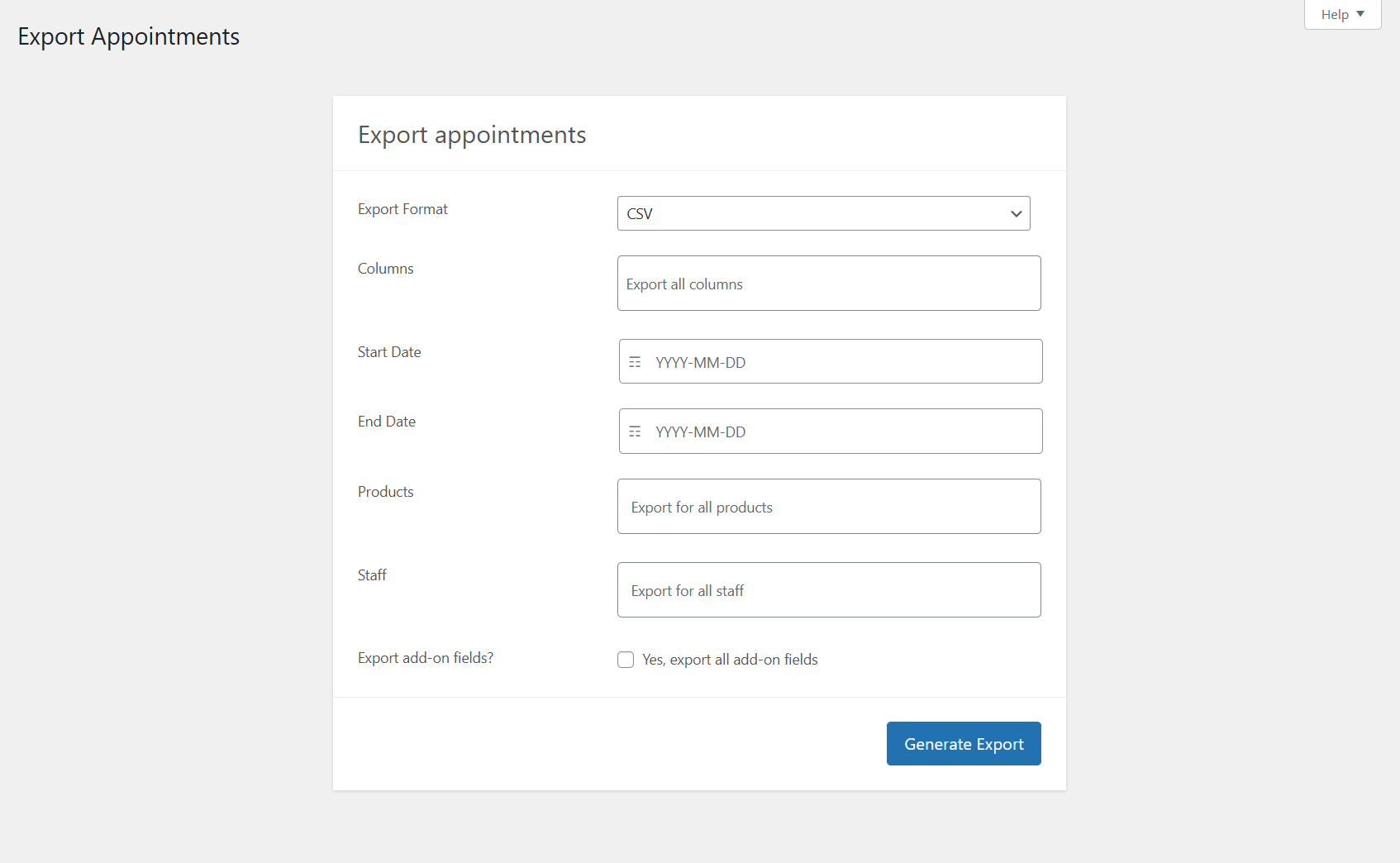
Filters (both formats)
| Filter | Purpose |
|---|---|
| Date range | Start and end dates |
| Product | Specific appointable products |
| Staff | Specific staff members |
| Export add-on fields | Include product add-on data |
CSV export
- Select columns - choose which fields to include
- Standard columns: ID, Order ID, Status, Start/End, Duration, customer name/email/phone, Product, Staff, Cost, Quantity, add-ons (when enabled)
ICS export
Respects the same filters. Each event includes date/time, product, staff, description (with add-ons when enabled), and status.
Manual ICS details and email attachments: ICS files via email.
Import / export products
Appointable products use WooCommerce’s standard product importer/exporter; appointment metadata is included.
Related
- ICS files via email
- Managing appointments
- Staff portal - staff export when
export_appointmentsis enabled