Appointable Product
How it works
An Appointable product is a WooCommerce product with duration, capacity, and booking rules. Customers book it on the storefront; you manage appointments in admin.
What you need first
- Plugin installed and licensed - Installation
- WordPress → Settings → General timezone and date format set - Global Settings
- At least one Open hours rule planned - Availability
You are ready when
- ✅ Product type is Appointable, duration and interval are set
- ✅ Appointments → Availability has at least one Open time rule (General or this product)
- ✅ A test booking shows slots on the product page
Create the product
- Go to Products → Add New.
- Choose Appointable Product in the Product Data dropdown.

- Mark Virtual when no shipping is required (selected by default for services so shipping is not applied).
General settings
Configure price, duration, interval, padding, lead time, scheduling window, and confirmation or cancellation rules here. Interval must be less than or equal to duration.
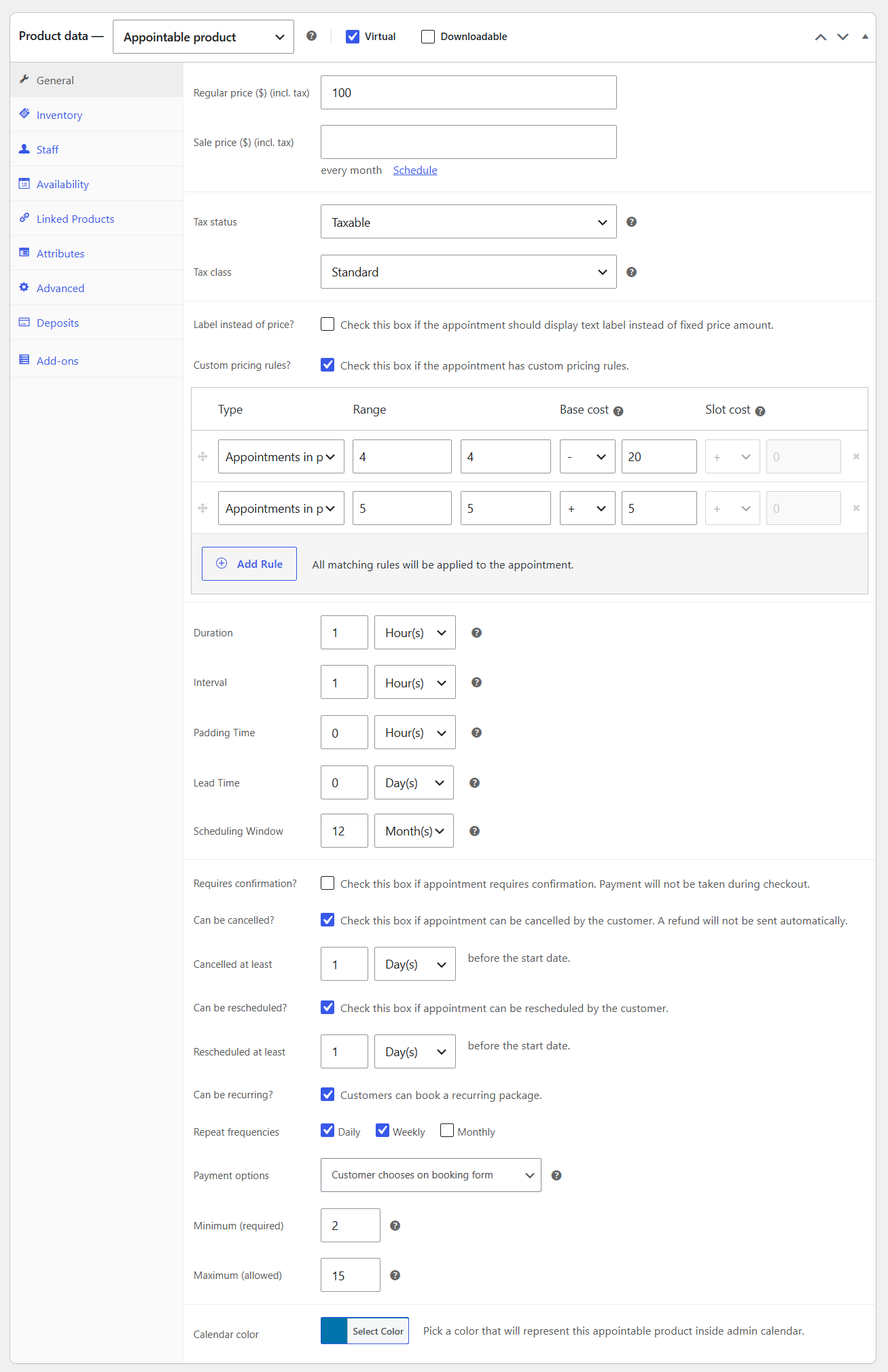
- Duration: How long each booked appointment lasts (minutes, hours, days, or months). The customer's start time plus duration must fit inside an Open range in Appointments → Availability. Use Day for multi-day stays (Night is not a duration option).
- Interval: How often start times are offered inside an open range. This is the step between starts, not how long the service lasts.
- Example: duration 2 hours, interval 15 minutes → starts at 09:00, 09:15, 09:30, …; each booking still blocks a full 2 hours.
- Example: duration 270 minutes, interval 270 minutes → starts only every 4.5 hours from the first open minute (for example 08:30, then 13:00 in a continuous day). Use a smaller interval (for example 30 minutes) if you want more start choices such as 13:30.
- Tip: for one departure per open window, set interval equal to duration and use availability rules for the window(s) you offer.
- Padding: Time reserved around each appointment for prep, setup, or cleanup. Set Before and After on the same row (shared unit). Padding is not added to the customer-facing duration; it only keeps staff free around the booking.
- Existing padding is treated as Before, and After starts at 0. With only Before set, the handoff gap stays the same as before (timed and day).
- The gap between two appointments is the earlier appointment's After plus the later appointment's Before. Example: After 10 then Before 15 gives a 25-minute gap (or 25 days on a day product when the unit is days).
- Same staff on two products: the same earlier-After + later-Before rule applies.
- Lead time: Minimum notice before booking (for example, 1 day means no bookings within 24 hours of start).
- Scheduling window: How far ahead customers may book (for example, 1 month).
- Requires confirmation: When enabled, customers submit details for approval instead of paying at checkout. After you approve, they receive a confirmation email with an optional payment link.
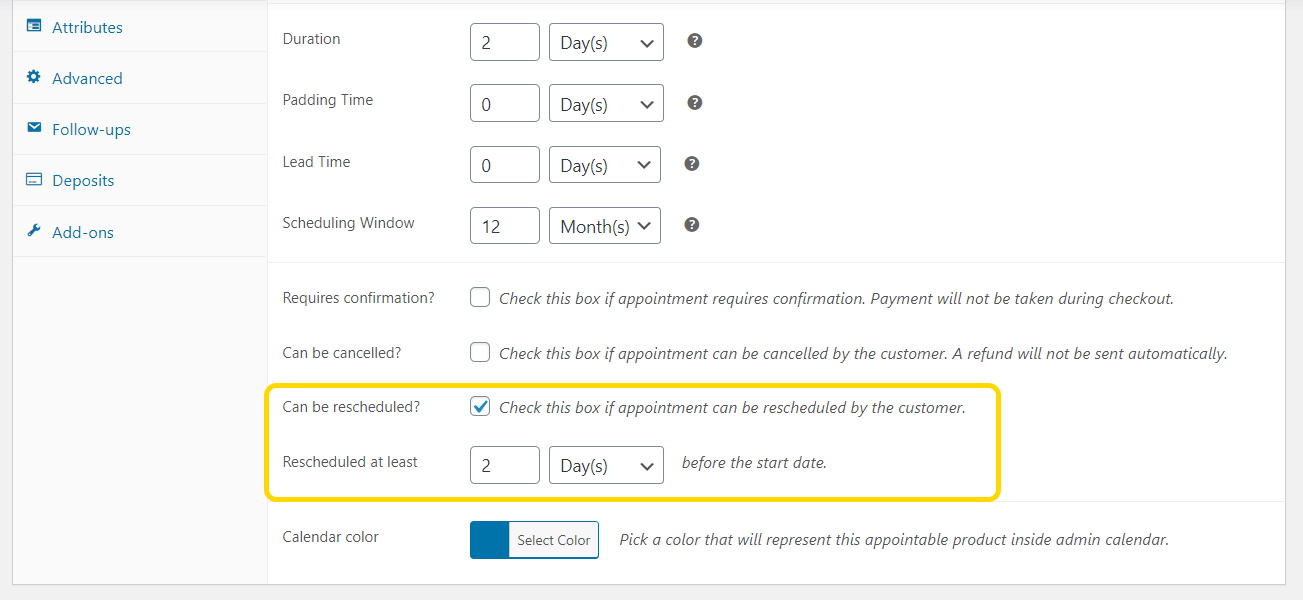
- Can be cancelled / Can be rescheduled: When enabled, set how long before start customers may cancel or reschedule from My Account.
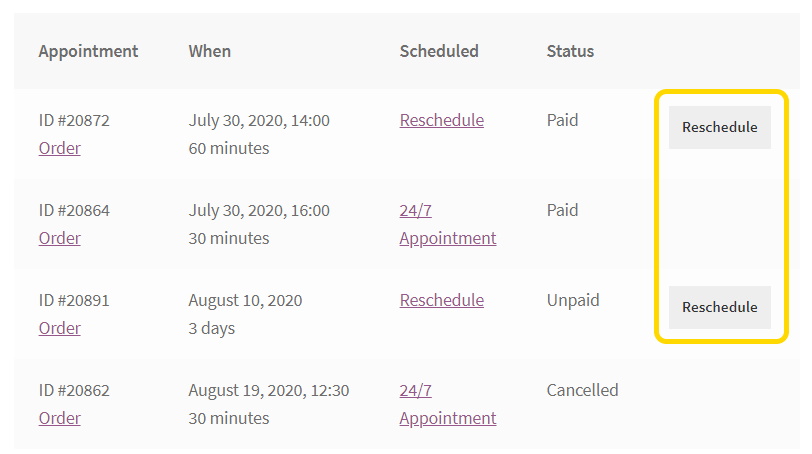
When reschedule is enabled, customers use My Account → Appointments.
- Timezones: Customer timezone display is site-wide (not per product). When enabled, customers pick a timezone on the booking form and in My Account. See Timezones.
Recurring packages (5.4+)
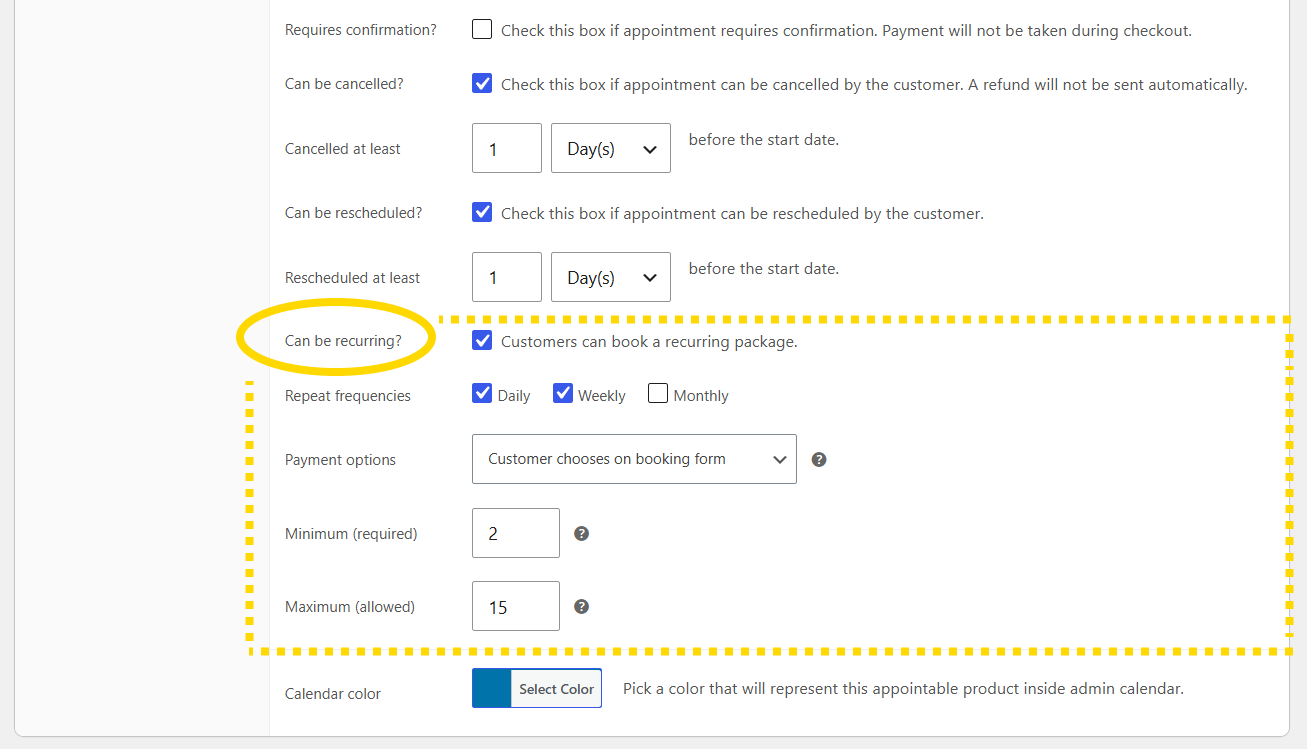
Below reschedule options, enable Can be recurring? to let customers book a series of sessions (class packs, treatment plans) with RRULE scheduling.
| Setting | Purpose |
|---|---|
| Repeat frequencies | Daily, weekly, and/or monthly patterns |
| Min / max sessions | Occurrence limits per package |
| Payment model | Prepaid (all sessions now), pay-first (first session now + balance order), or customer chooses |
Use Pricing tab rules with Appointments in package to discount longer series. Add-ons can be marked Use once per recurring series.
Full guide: Recurring appointment packages.
Recurring packages are not subscriptions. For ongoing credits each billing period, use a WooCommerce Subscription product with the Appointments tab - see Membership credits.
Pricing
Set the appointment price on the General tab like any WooCommerce product.
Price fields
- Regular Price: Standard price unless a sale price applies.
- Sale Price: Optional discount. The price at booking time applies, not the appointment date (December sale price applies to a January slot booked in December).
- Cost of Goods Sold (COGs): Your cost per appointment for margin reporting. Not shown to customers and does not change the selling price.
COGs help track profitability. Regular Price $100 and COGs $30 means $70 margin per appointment.
You can hide the numeric price and show a custom label with Label instead of price? - checkout still uses the calculated price.

Custom pricing rules
Use Custom pricing rules on the Pricing tab for date, time, staff, or duration-based pricing (similar structure to availability rules).
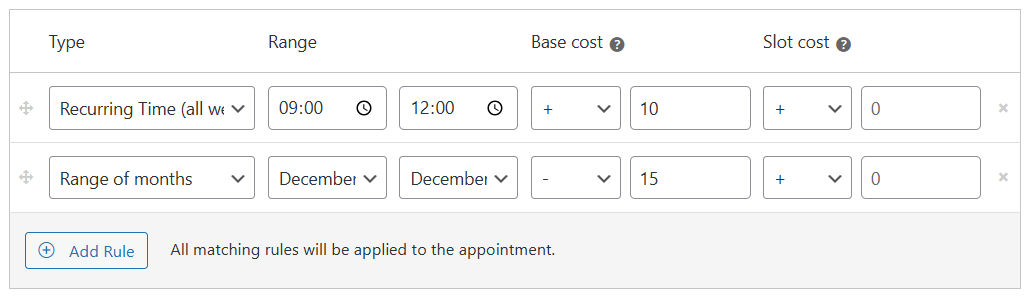
Rule types:
- Base cost: One-time charge for the whole appointment
- Slot cost: Per slot; for multi-day bookings, applies to each day in the range
Cost modifiers:
- + (Plus): Adds to base price and add-ons
- = (Equals): Replaces base price and add-ons for matching ranges
Use = when a rule should fully override product price and add-ons for specific date/time ranges.
Inventory & capacity
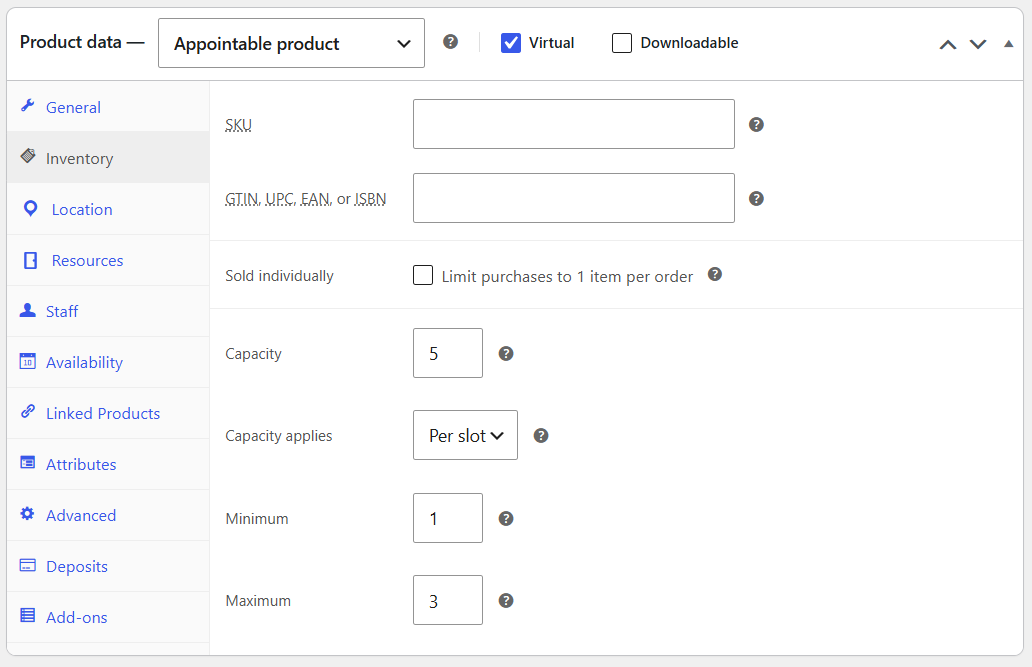
By default, one appointment fits each available slot. Raise Capacity for group classes or parallel bookings.
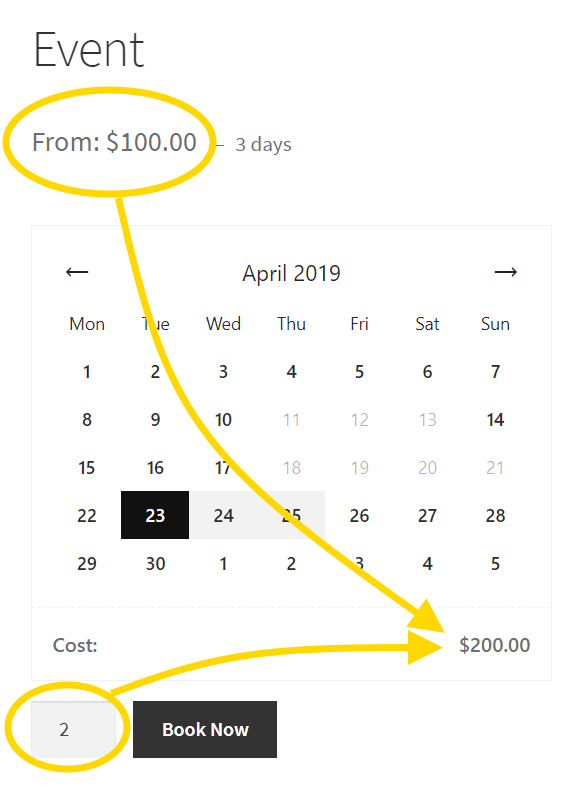
When Capacity is greater than 1, customers use the WooCommerce quantity field to book multiple seats in one checkout. Maximum caps how many they can request (for example, max 2 for pairs).
| Setting | Purpose |
|---|---|
| Capacity | Base seats per slot or per day |
| Capacity applies | Per slot (default) or Per day (shared cap for all starts that day) |
| Minimum / Maximum | Clamp quantity in one checkout |
| Staff row Quantity | Replaces product Capacity for that person when set |
| Availability Spots | Optional lower seat count on an open product rule |
With staff assigned, seats are per staff member, not a shared pool:
- Capacity 1, no staff → 1 booking per slot
- Capacity 10, no staff → 10 bookings per slot
- Capacity 10, one staff with Quantity blank → 10 for that staff (product Capacity)
- Capacity 10, staff Quantity 3 → 3 for that staff (staff wins)
- Two staff, each Quantity 10 → 10 per person (not 20 shared)
How people seats and rooms combine
- People ceiling: staff Quantity if set, else product Capacity (optional rule Spots can lower further)
- With Locations & rooms (beta) and no staff, product Capacity is counted per location
- Max at once on the product Resources tab may lower seats further (room/equipment limit)
Staff Quantity replaces product Capacity, but it does not raise room Max at once. Example: Capacity 1 + staff Quantity 5 + Max at once 3 → 3 bookable seats. See Rooms & resources.
Per-day specifics
- Multi-day/month bookings deduct capacity from every day they cover; a slot is unavailable if any day in the span has no remaining daily capacity.
- For Automatically assigned (all staff together), every staff member must have daily capacity for each day in the span.
- With no staff preselected, summed daily capacity is capped by the product's per-day Capacity.
Staff
Assign staff who can be booked for this product. Staff hours are global - booking someone for one product blocks that person for the same date/time on all other appointable products.
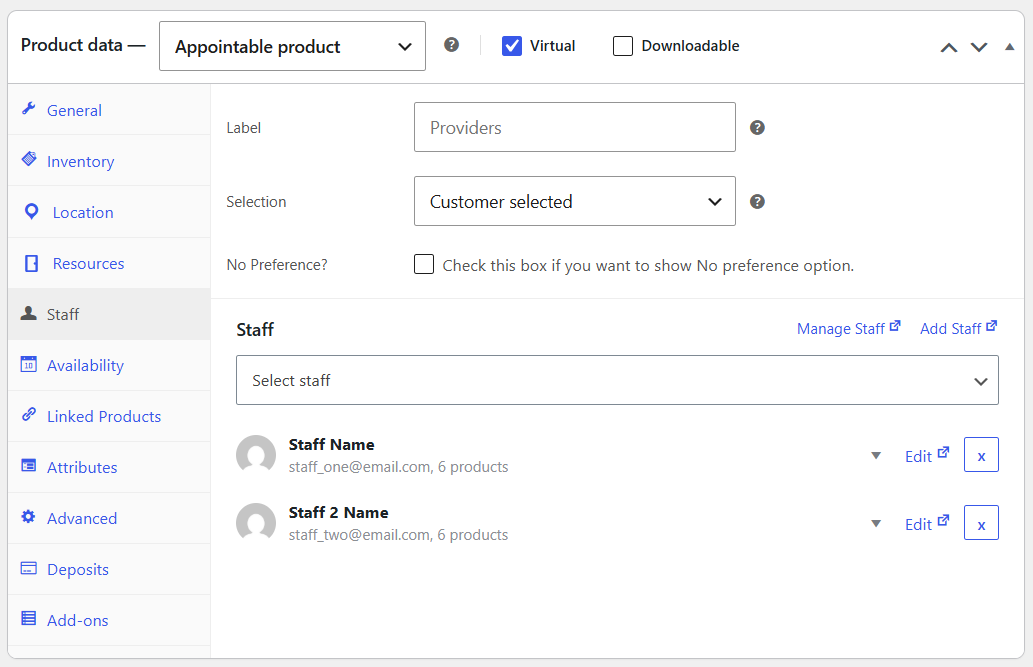
Selection (product Staff tab):
| Mode | Behavior |
|---|---|
| Customer selected | Dropdown on the booking form |
| Automatically assigned | Plugin picks an available person |
| Automatically assigned (all staff together) | Every assigned staff is booked for the slot |
No Preference? - when Selection is Customer selected, offer a "no preference" choice so the plugin assigns someone.
Add staff under Users → Add New with the Shop staff role, or Appointments → Staff. Optional label appears on the form instead of the display name.
| Row field | Purpose |
|---|---|
| Additional Cost | Extra charge for that person |
| Quantity | Seat limit for that person on this product (blank = use product Capacity) |
Staff profile
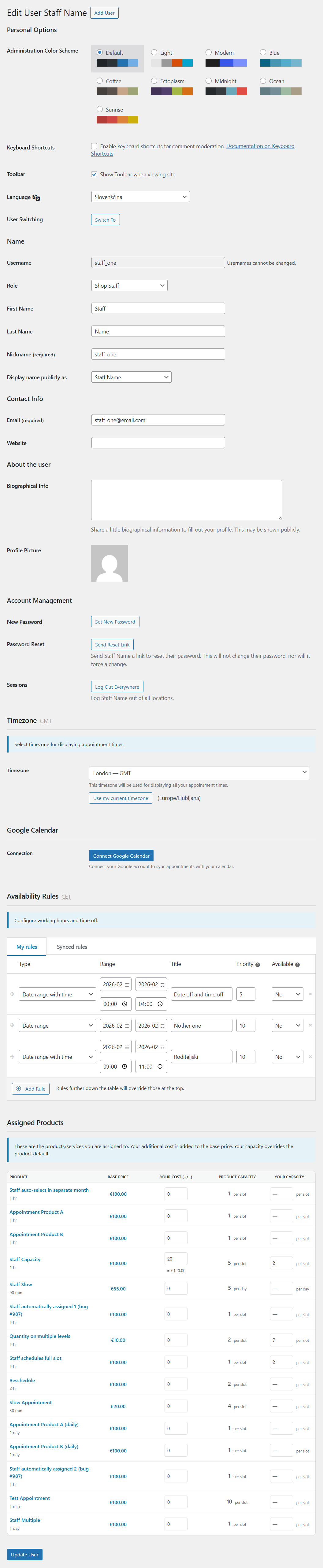
Under Users → Profile (or Edit user), staff can:
- Connect a personal Google Calendar
- Open Appointments → Availability (staff row) for Open hours and Google Busy
- Opt in or out of products that list them
Full guide: Staff.
Availability (product tab)
Edit open hours in Appointments → Availability (pick this product in the left rail). The product Availability tab keeps a week preview and a link into that screen, plus product-only options below. Layers and priority: Availability.
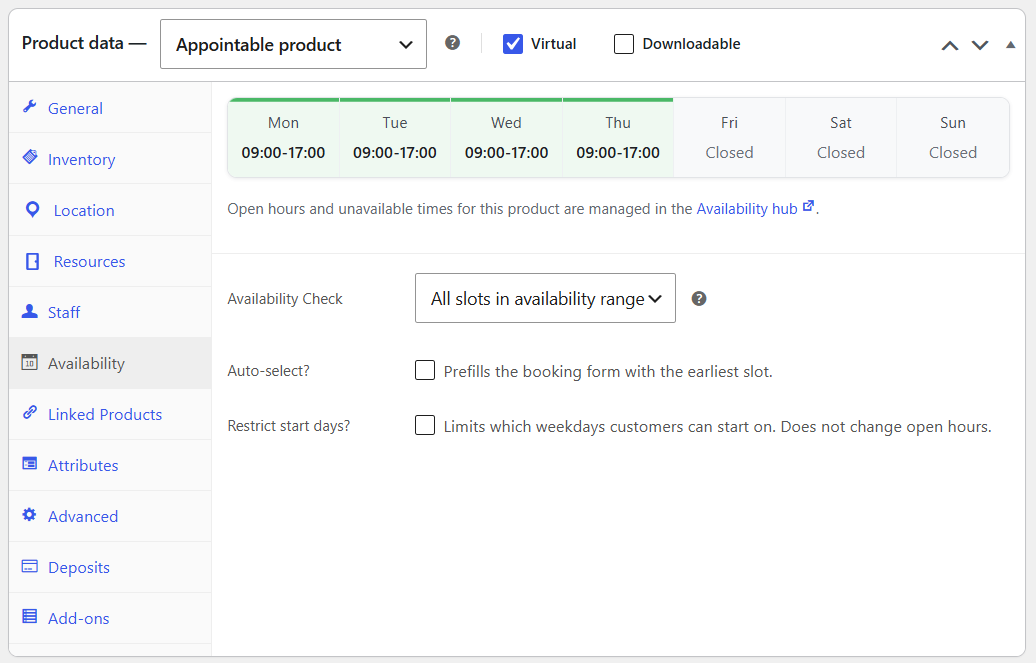
Product-only options:
| Option | What it does |
|---|---|
| Availability Check | Check only the starting slot, or every slot across the booked range |
| Auto-select? | Pick the first available slot automatically |
| Restrict start days? | Limit which weekdays an appointment may start on |
Use Recurring Time (or weekday time rules), not Range of days set to Open on Mon-Fri alone. See Mon-Fri 9-5.
Add-ons
Product add-ons appear on the booking form. On a new or existing appointable product, open the add-ons panel and click Add Field:
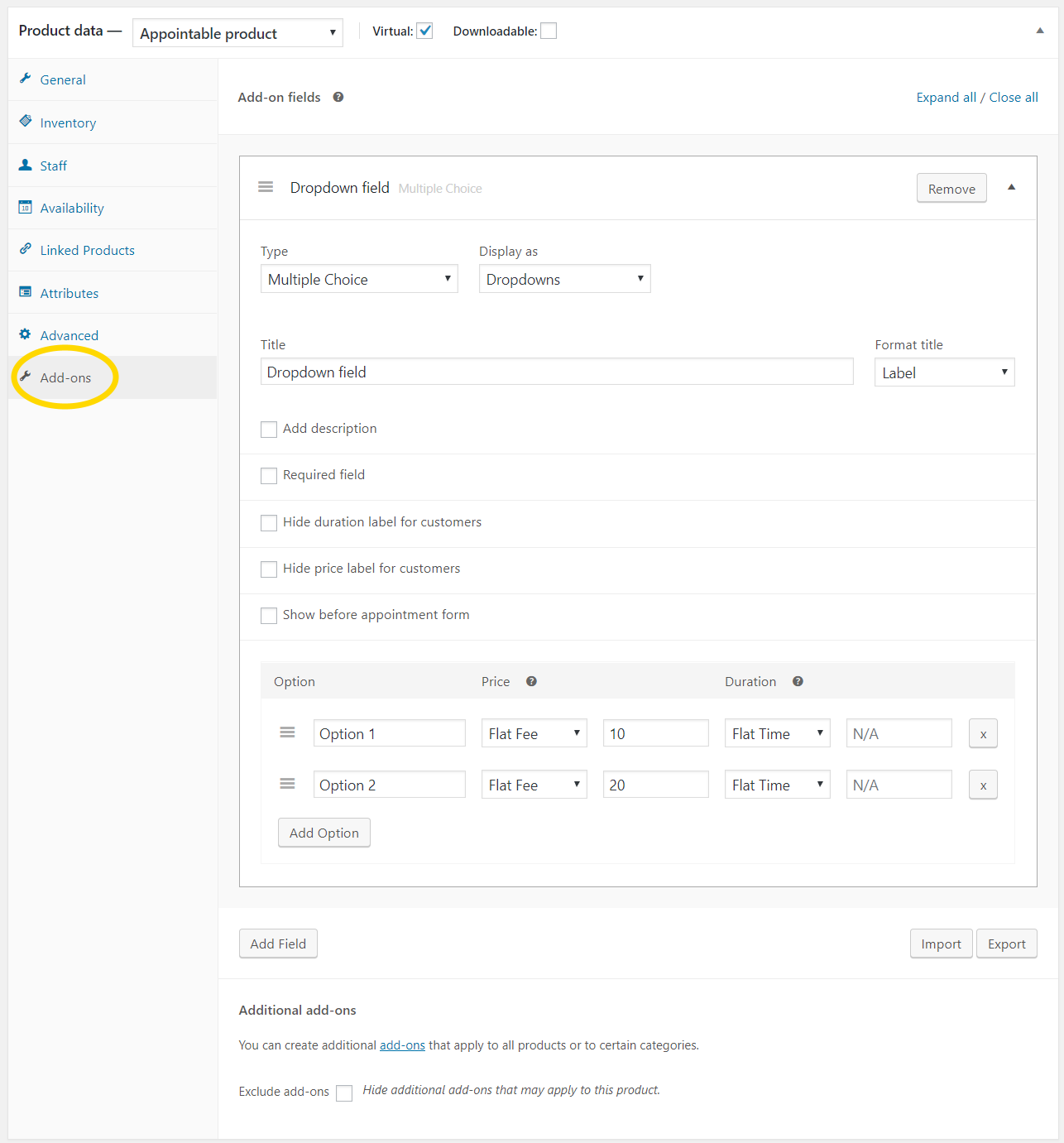
Choose Type and Display as to define the field:

Common options:
- Hide duration label for customers / Hide price label for customers - hide labels on the storefront only.
- Show before appointment form - render add-ons above the calendar.
Per option:
- Option - label shown to customers.
- Price - added to total (flat or per quantity; can be negative).
- Duration - added to appointment length (flat or per quantity; can be negative).
See Add-ons for global add-ons and recurring-series options.
Related
- Availability - open bookable slots
- Locations · Rooms & resources (beta)
- Customer booking process - test the form
- Recurring packages - multi-session products (5.4+)
- Add-ons - extra fields on the booking form