Product Add-ons
Product Add-ons is included with WooCommerce Appointments. Add fields to the booking form so customers can pick extras, extend duration, or provide information - with optional price and duration adjustments.
How it works
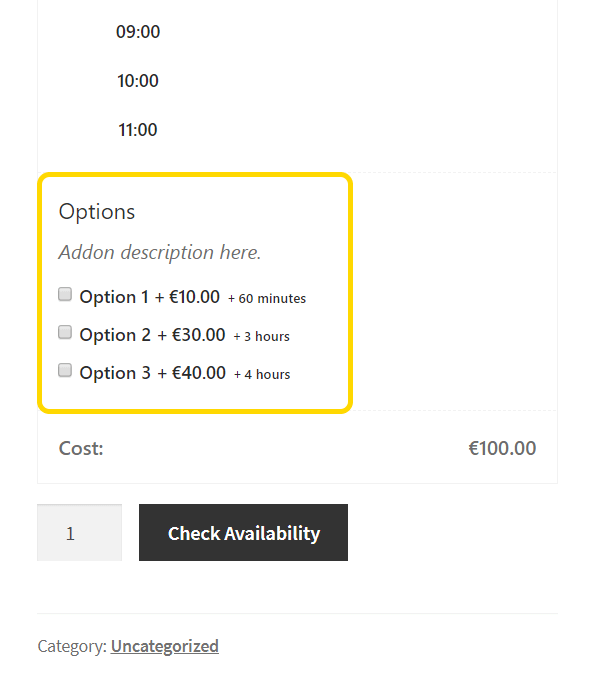
Add-ons appear on the appointable product booking form (and in the admin appointment panel create flow). Each field can adjust price, duration, or collect data only. Duration add-ons change which slots are available - the engine checks base duration + add-on duration.
What you need
- An appointable product
- Availability that covers extended durations when using duration add-ons
You are ready when
- ✅ Add-on fields appear on the storefront booking form
- ✅ Price and duration totals update when options are selected
- ✅ A test booking with add-ons shows values on the order and appointment
Field types
| Type | Use for |
|---|---|
| Dropdown / radio / images | Single choice; each option can have price and duration |
| Checkboxes | Multiple selections; per-option price and duration |
| Short / long text | Customer input; optional validation (letters, numbers, email) |
| File upload | Documents or photos |
| Customer defined price | Tips, donations - min/max limits |
| Quantity | Count-based options |
| Date picker | Related dates or deadlines |
| Heading | Visual separator (no input) |

Product-level add-ons
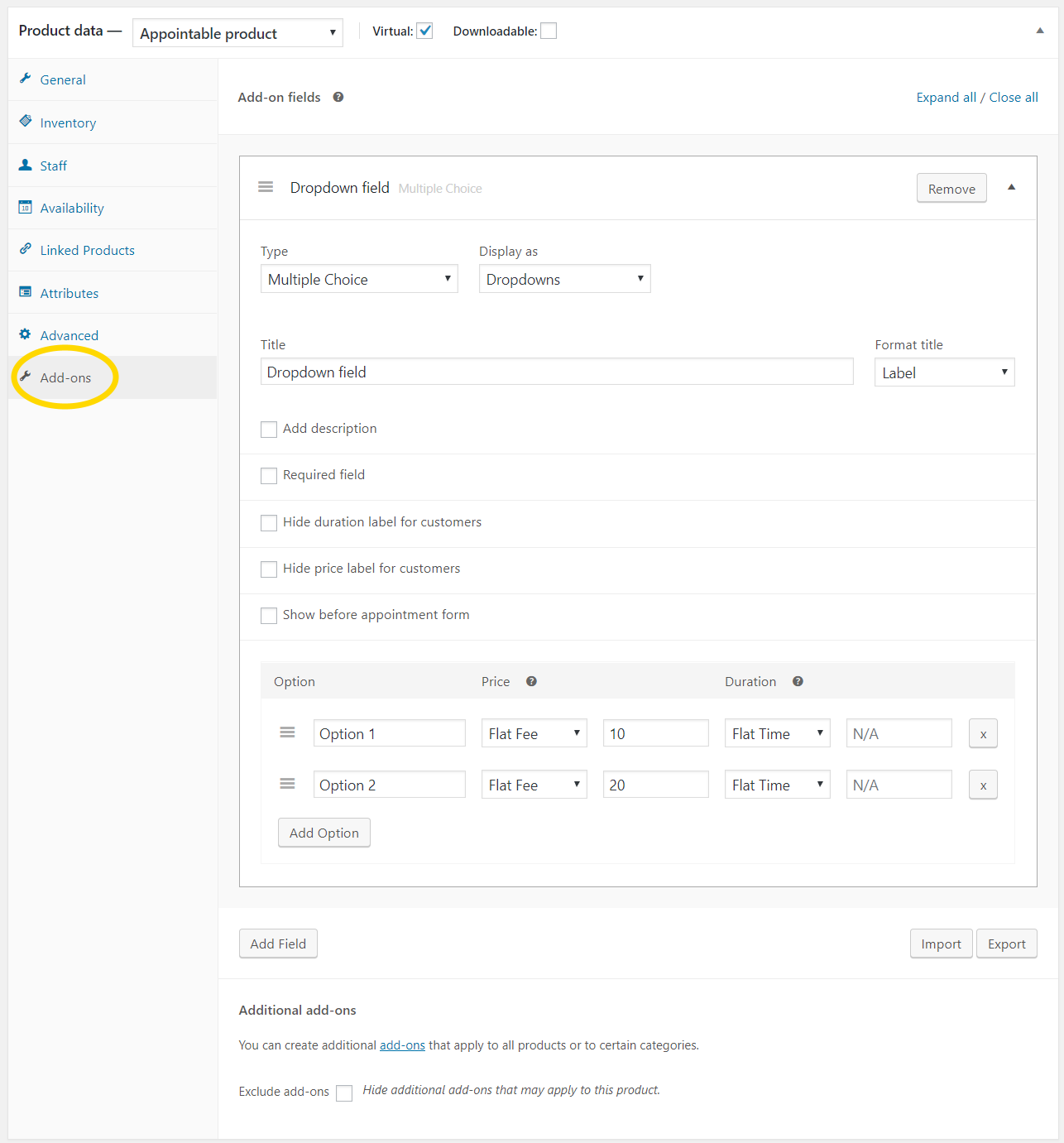
- Edit an appointable product → Add-ons tab
- Click Add field and choose a type
- Configure:
- Title - label on the form
- Title format - label, heading, or hide
- Description - optional help text
- Required - mandatory before booking
- Options - for choice fields: label, price, duration per option
See Appointable product - Add-ons for common display options (Hide duration label, Show before appointment form, etc.).
Global add-ons
Reusable groups for multiple products:
- Products → Add-ons → Add Group
- Set Name, Priority, and Product Categories (or all)
- Add fields (same types as product add-ons)
On each product's Add-ons tab, enable Use Global Add-Ons? to show global fields alongside product fields.
Pricing
When Adjust price is enabled:
| Type | Calculation |
|---|---|
| Flat fee | Fixed amount |
| Quantity based | Price × quantity |
| Percentage based | Not available for appointable products |
Prices display next to options on the storefront (can be hidden per field).
Duration add-ons
Duration add-ons are appointable products only.
- Create a choice or checkbox field
- Enable Adjust duration
- Choose Flat time (fixed minutes) or Quantity based (minutes × quantity)
- Enter minutes; optionally hide the duration label
The slot engine checks base + selected add-on duration. Multiple duration add-ons stack.
Example: 60-minute appointment + 15 min add-on + 30 min add-on = 105 minutes required availability.
Test duration add-ons against your availability rules - long combinations need open slots for the full window.
Display and validation
| Setting | Options |
|---|---|
| Title format | Label · heading · hide |
| Display as (multiple choice) | Dropdown · radio · images |
| Text restrictions | Any · letters · numbers · alphanumeric · email |
| Limits | Character length; quantity min/max; customer price min/max |
Import and export
Export / Import on the product Add-ons tab uses JSON - copy add-ons between products or back up configurations.
Recurring packages
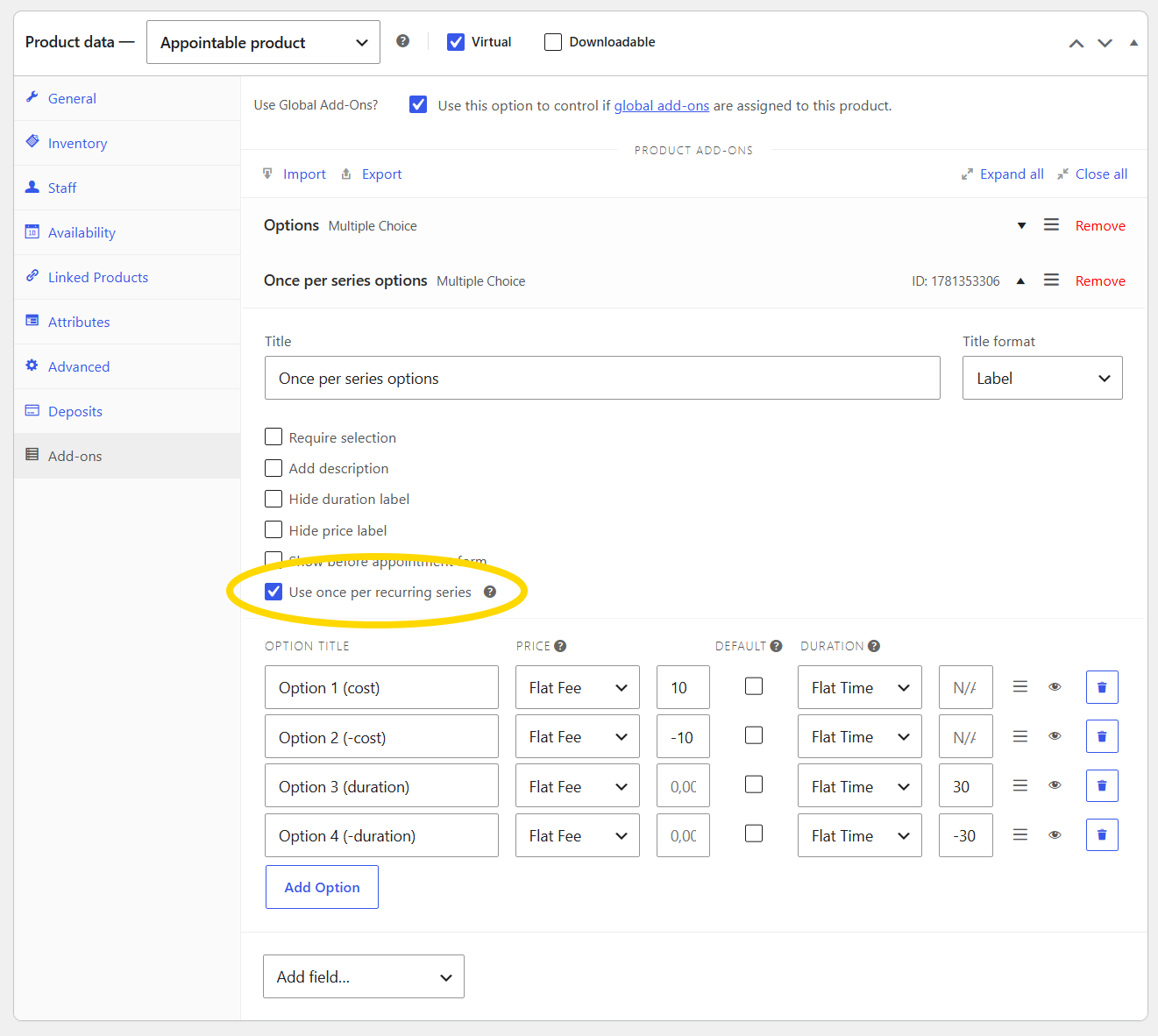
When recurring packages are enabled, each option can use Use once per recurring series:
- Price and duration apply once for the whole package, not per session
- Ideal for setup fees or one-time equipment on class packs
Best practices
- Group related options with Heading fields
- Show prices clearly on the storefront
- Explain duration add-ons in option labels or descriptions
- Use global add-ons for options shared across products
- Test extended durations with real availability rules
Related
- Appointable product - attach add-ons to products
- Recurring packages - once-per-series pricing
- Customer booking process - how add-ons appear on the form
- Pricing rules - product-level pricing (separate from add-ons)