Email Notifications
Configure appointment emails under WooCommerce → Settings → Emails.
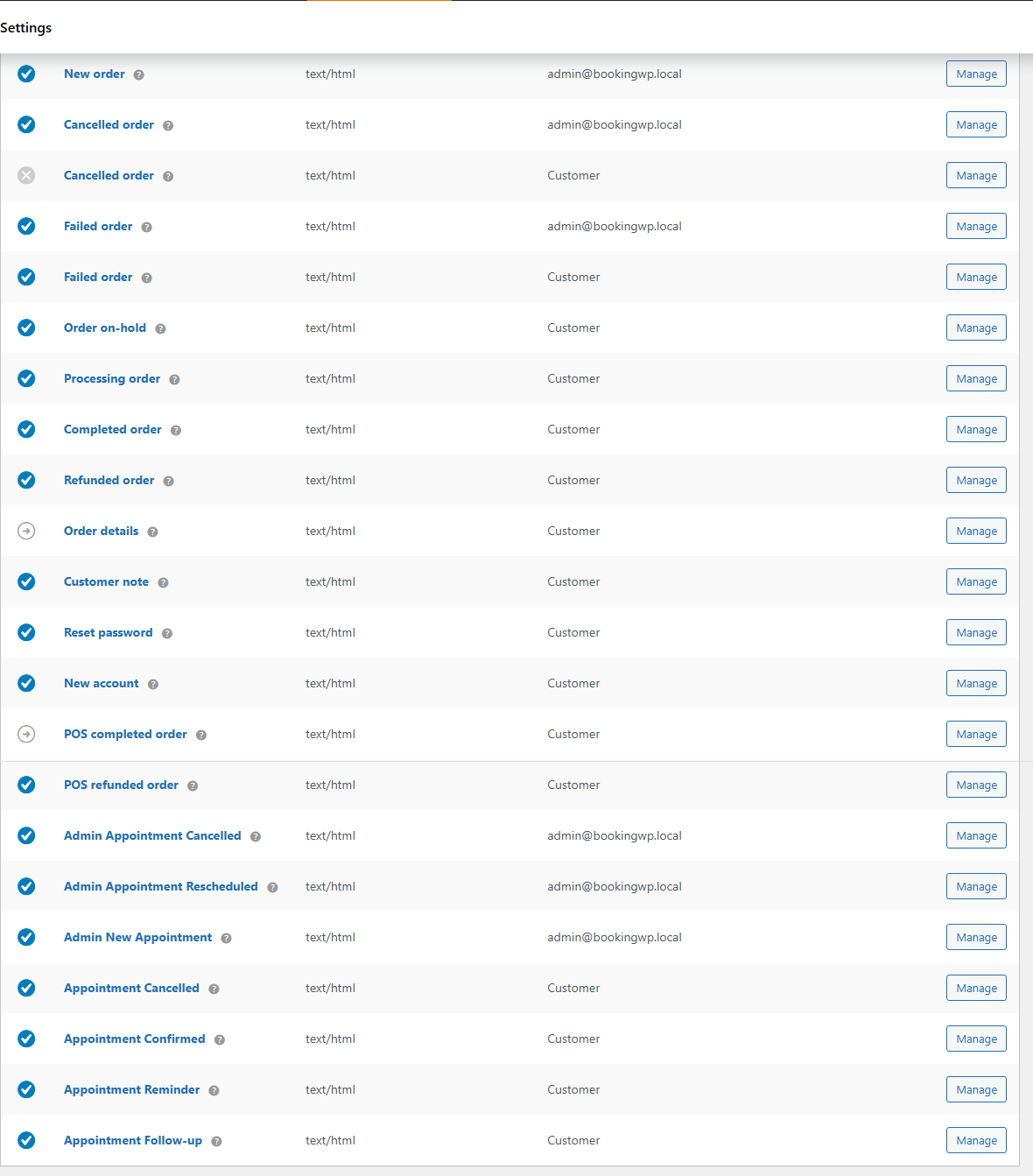
How it works
Each email type fires on a specific appointment status change or schedule (reminder, follow-up). Admin emails go to store admin and assigned staff; customer emails go to the booking customer. All are timezone-aware since 5.2.0. Bodies include location, resources, and Join Meeting when those fields exist on the appointment (5.5+).
What you need
- Working WooCommerce email delivery (SMTP recommended on production)
- Site timezone set correctly
You are ready when
- ✅ New Appointment arrives after a test checkout
- ✅ Appointment Confirmed shows the correct local time for the customer
- ✅ Reminder timing is set on Appointment Reminder if you use automated reminders
Admin emails
| When sent | Notes | |
|---|---|---|
| New Appointment | Checkout completes; status moves from in-cart / unpaid to paid or pending-confirmation | Also when a pending-confirmation appointment is created |
| Appointment Cancelled | Status → cancelled | From admin panel, My Account, or automated flow |
| Appointment Rescheduled | Date or time changes | Includes previous and new times |
Recipients include store admin and assigned staff (grouped by timezone when staff differ).
Customer emails
| When sent | Notes | |
|---|---|---|
| Appointment Confirmed | Status → confirmed | After payment (auto-confirm products) or manual confirm |
| Appointment Reminder | Scheduled before start (default: 1 day) | Configure interval on the email settings screen |
| Appointment Cancelled | Status → cancelled | Confirms cancellation to the customer |
| Appointment Follow-up | Scheduled after end (default: 1 day after) | Configure interval on the email settings screen |
Reminder and follow-up send only for active (non-cancelled) appointments.
Appointment Series (5.4+)
| When sent | Notes | |
|---|---|---|
| Appointment Series | Package confirmed at checkout; scoped bulk cancel/update on a series | Summarizes pattern, sessions, payment status |
Per-session Appointment Confirmed and Appointment Reminder still fire for individual occurrences. Pay-first balance orders use standard WooCommerce order emails.
See Recurring packages - Emails.
Email editor (5.3.8+)
When WooCommerce enables the block email editor site-wide, edit appointment email layout in WooCommerce → Settings → Emails like core WooCommerce emails. Theme template overrides under yourtheme/woocommerce/appointments/emails/ still apply for advanced changes.
ICS calendar attachments
These emails include an .ics file:
- Admin New Appointment
- Admin Appointment Rescheduled
- Appointment Confirmed
- Appointment Reminder
- WooCommerce Processing Order (with appointments)
- WooCommerce Completed Order (with appointments)
Cancelled and Follow-up emails do not include ICS attachments.
Timezone-aware emails
| Audience | Dates shown |
|---|---|
| Admin / staff | Recipient's timezone |
| Customer | Customer's timezone |
Admin emails include Customer's Timezone and Staff timezone rows when those zones differ from the recipient's. Multiple staff in different zones → separate sends per timezone group.
Details: Timezones - Email notifications.
Placeholders
Use in subject and heading fields:
| Placeholder | Description |
|---|---|
{site_title} | Site name |
{product_title} | Appointable product name |
{appointment_number} | Appointment ID |
{appointment_start} | Formatted start |
{appointment_end} | Formatted end |
{order_date} | Order creation date |
{order_number} | WooCommerce order number |
Rescheduled also supports {prev_appointment_start} and {prev_appointment_end}.
Customize emails
- WooCommerce → Settings → Emails → Manage on the email type
- Edit subject, heading, and HTML/plain type
- Override templates in your theme for deeper layout changes
Related
- Timezones - how dates appear in emails
- Locations · Google Meet - venue and Join Meeting in email bodies
- Recurring packages - series email
- ICS export - calendar file behavior
- Customer booking process - when confirmation fires